Posts

Showing posts with the label #QuickBooks #Payroll #bookkeepin #Checks #Supplies

Converting From QuickBooks for Mac to QuickBooks Online

Image
With QuickBooks for Mac 2014 you can transfer your data to the new QuickBooks Online! In QuickBooks for Mac, choose QuickBooks > Check for QuickBooks Updates and update to the latest revision. After the update finishes and you restart QuickBooks, choose File > Export > To QuickBooks Online. Then, once QuickBooks successfully copies and import your data, QuickBooks will send you an email. From there, sign in to see your data It's that simple! What if you don't have QuickBooks for Mac 2014?  You can use the trial version of Mac 2014 to continue. In order to download QuickBooks for Mac 2014 Trial, you'll need Mac OS X v10.7 (Lion) or v10.8 (Mountain Lion). If you have an older version of Mac OS X, you will need to upgrade to v10.8 to continue. Download QuickBooks for Mac 2014 Trial here: http://http-download.intuit.com/http.intuit/Downloads/2014/Latest/QuickBooksProMac2014Trial.dmg Install QuickBooks for Mac 2014 trial and upgrade yo...

QuickBooks Online Key Board Short Cuts!

Below are the most commonly used key board short cuts for QuickBooks Online! To search for a text in the window: CTRL + F works in Internet Explorer, Firefox and Chrome.  Internet Explorer will bring up a pop-up window to do the search. Firefox opens a Find toolbar on the bottom of your screen, while Chrome opens a search field at the top right of the screen. To enter dates: Next day + (plus key) Previous day - (minus key) Today T First day of the Week W Last day of the week K First day of the Month M Last day of the month H First day of the Year Y Last day of the year R Press Alt+down arrow to open the pop-up calendar icon to the right of a date field. To move around fields on most forms: Use the Tab key to go forward. Use Shift+Tab to go back. Space Bar to check a check box field. To choose items in drop-down lists: Press Tab until you reach the field. Press Alt + down arrow to open the list. Press up arrow or down arrow to move through the items in th...

Send Your Customer's an Invoice With QuickBooks for Mac

Image
Sometimes customers just don't pay you on time. Which can be very frustrating. That's where QuickBooks comes in! With QuickBooks for Mac you are able to send an invoice to your customer!  If you have an open estimate for a customer, QuickBooks lets you know this when you select  the customer name on the invoice. You can then select which estimate you want to use to create an invoice. Creating or editing an invoice: 1. Choose Customers; Create Invoice. 2. To create a new invoice, click the "Create an Invoice" on the left panel or click the + at the bottom of the      list. To edit an invoice, select an invoice in the list on the left panel. 3. Enter the information for the invoice, and click Save. Note: You can also create invoices using the Customer Center and Transaction Center. Got Mac? Then you need QuickBooks for Mac!  Why? Get 1-click access to what you use most: The new Left Hand Toolbar lets you create shortcuts so you can m...

The QuickBooks Gal: Bookkeeping, Payroll and More!

Image
The QuickBooks Gal is here for all your business needs! Our bookkeeping service is suitable for any size business, big or small we have you covered! We Offer: Set up Clean up Ongoing Bookkeeping Process daily sales and deposit reports Verify daily deposits and report variances Reconcile and verify credit card deposits Reconcile monthly bank statements The QuickBooks Gal even does payroll! Which makes running your business a little easier! What Does This Entail? Maintain Payroll Records E-Verify New Employees Process Payroll Direct Deposit Process Governments & Child Support Process Quarterly Tax Reports Process Annual Reports & W-2's The QuickBooksGal even offers remote support services; the latest technologies for screen sharing. Gaining access to your screen allows our experts to view your precise problem and rectify it swiftly. These remote support sessions allow our advisers to troubleshoot QuickBooks issues f...

How to Back Up in QuickBooks

Image
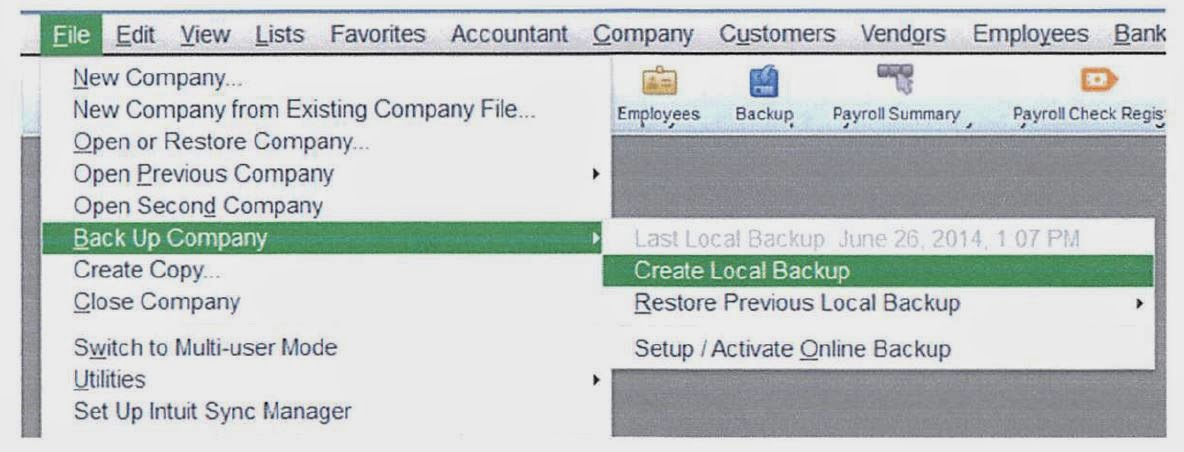
Backing up your work is very important! Especially if you are trying something new. Below are step by step directions on how to back up in QuickBooks Insert flash drive and confirm what the drive is (I am using Desktop in this example) Select File>Backup company>create copy>create local backup Follow these steps...screenshots below explain what to do next: Select Finish- process will take a while.. do not remove flash drive until you see a message that says your backup is complete. When you see this message, click OK before you eject the flash drive or the backup will not properly close. When finished, insert the flash drive and verify that you have the file on there. Make 2 backups! Have a QuickBooks Mess? Call the QuickBooks Gal!

Tips and Tricks!

Image
New to QuickBooks? Don't worry the QuickBooks Gal is here! Here are some tips for a smooth start to QuickBooks! Start out small!: As a beginner you should create only the accounts and items you need to get going. Then add more as necessary. Back up!: Always, always back up your QuickBooks! You can back up to a network drive, external drive, CD, or to the Intuit Data Protect service. Before you do anything in QuickBooks that you’re are unfamiliar with, make a backup, and only then move forward. Try it in the sample file!: Doing something new? The sample files contain items and services typically performed by particular business types. You can use these files to try out new features you may not be familiar with and to experiment. Ask for Help!: QuickBooks can be confusing but that is why I am here! Have any questions or concerns about QuickBooks?? Call The QuickBooks Gal today!

QuickBooks Online! We Can't Stop Talking About It!

Image
QuickBooks Online is becoming more and more popular! Here are some reasons why we can't stop talking about QuickBooks Online! Always be able to see who has paid and who hasn't!  Receive invoices fast! With our payments feature your customers can press a "pay now' button and your invoices will be paid instantly via credit card or bank statement.  You now can even capture photos of your receipts on your phone or tablet and then attach them to your QuickBooks expenses. No more saving receipts! QuickBooks now automatically takes in statements from your bank and credit card accounts, this means less work for you and it helps reduce double entry errors. Why do other users love QuickBooks Online? With QuickBooks Online you are constantly saving time and money, which means more time for you!  So hurry and call us today at 775-348-9225 to learn more about QuickBooks Online.

Nevada Tax Return Mailings Discontinued!!

Image
Department of Taxation Nevada Tax Return Mailings Discontinued Effective July 1, 2014, the Department will no longer mail Sales & Use and Use Tax Returns to your business. Tax Returns can be downloaded and printed from our website at http://tax.nv.gov/ Please mail your return and payment to : Nevada Department of Taxation P.O Box 52609 Phoenix, AZ 85072-2609 If you would like to file your returns online and if you are a new user, simply follow these instructions: Click " Enroll Nevada Tax " on the homepage. Have available: a username, the users First and Last name, phone number, e-mail address, Taxpayer Identification number (TID), Business Name and the amount of a previously filed return or payment OR your pre-approved Nevada Tax Access Code (found on your Sales or Use Tax Permit.) Follow the instructions on the screen Once you are enrolled, simply login to your account and choose the business for which you wish to File and Pay. Menu options w...

QuickBooks Online: Keyboard Shortcuts

QuickBooks Online is already made to make your life easier, but now it is about to get even better! Below is the keyboard shortcuts for QuickBooks Online!  Got a QuickBooks Mess? Call the QuickBooks Gal! Note to Mac users:  You can try these shortcuts using the CMD key instead of Alt or CTRL when noted below. To open a second window in: Internet Explorer:   Press Ctrl + N (you will be logged in to existing company on both windows) Firefox:  Press Ctrl + N (you won't be logged in to the second window but will remain logged in to the first one.  The second window will allow you to log in to the existing company so that you may work using both screens.) Chrome:  Press Ctrl + N (if you go to QBO in that window you will be logged in to the existing company) To search for text in a window: To enter dates: Next day + (plus key) Previous day - (minus key) Today T First day of the Week W Last day of the week K First day of the Month M L...

FAQ On Installing QuickBooks:

Image
When it comes to installing QuickBooks it can be confusing, but don't worry The QuickBooks Gal is here to help! Here are a list of frequently asked questions about installing Quickbooks Products.  How do I update my data to a new version of QuickBooks?: Your data from an earlier version of QuickBooks will update automatically the first time you open the company file in a new version of QuickBooks What if I have multiple versions of QuickBooks? Can I merge all my files together? Unfortunately, QuickBooks files cannot be combined.  I just got a new computer, how can I QuickBooks or my data to a new computer? To move QuickBooks from one computer to another: 1) Install and register QuickBooks on the new computer: 2) Back up the company file on the old computer. 3) Restore the backup on the new computer. If you installed a newer version of QuickBooks on the new computer, the company file will be updated automatically the first time you open it. ...

Everything Is Faster With QuickBooks Online

Image
With QuickBooks Online there are more ways to accept payments! With QuickBooks Online you can swipe credit cards with your smart phone or tablet! It will automatically sync with all your devices so you don't have to worry about any errors!  With QuickBooks Online there are two simple pricing plans!: You will love both of these plans because: Everything you need for payments is in QuickBooks Online. You can accept all major credit cards, debit cards and pay with your smart phone or tablet!  There are even automatic updates and upgrades that don’t require  any action from you!  Faster Payments happen with QuickBooks Online! I forgot to mention the best part about QuickBooks Online: You can use it anytime, anywhere! Even at the beach! Have any more questions about QuickBooks Online? Call us today at 775-348-9225

Checks and Supplies!

Image
Need checks and supplies for QuickBooks? Remember, the only checks for QuickBooks by the makers of QuickBooks is the Intuit Checks Intuit provides for you! Basis Voucher Blue Secure Plus Standard Blue  Intuit’s checks have 27 overt and covert features designed to keep you and your business safe. Intuit protects your checks with state-of-the-art security.  Secure checks help prevent fraud and element it. If you would rather not deal with fraud at all, secure checks is the best way to go! Secure Premier Voucher Blue What's the difference?:  Premier has more security protections: the security hologram on the front of the checks. The hologram makes scanning or copying nearly impossible. Self-Seal Standard Voucher Check Envelopes  You can even order Deposit Slips, Endorsement Stamps and even Security pens! Want more information about QuickBooks Checks and Supplies? Call us today at 775-348-9225

FAQ: QuickBooks Online

Image
Everyone is making the switch to QuickBooks Online! But with the switch comes many questions! Here are the most frequently asked questions about QuickBooks Online! Can I convert my existing QuickBooks desktop data? Yes! You can import your QuickBooks Basic, Pro or Premier file into Online Plus or Online Essentials! What about Quicken? Unfortunately no.  How much accounting do I need to know in order to use QuickBooks Online? QuickBooks Online was made to be easy to use. No need to learn how to do accounting! All you need to know is how to write checks, create and send invoices, and file your bills! What is included with my subscription?  QuickBooks Online includes: Full use of the features of the particular version of QuickBooks Online, automatic upgrades to your selected version at no extra cost, secure storage of your data, and product support. Can I try the new update to QuickBooks Online before I make the switch? Of course! You can start ...

How to convert your file from QuickBooks for Windows to QuickBooks for Mac!

Image
Need to know how to convert your file from QuickBooks for Windows to QuickBooks for Mac? Check out this step by step video!  Have a QuickBooks Mess? Call the QuickBooks Gal! 

QuickBooks for Mac Keyboard Shortcuts!!

Over the past few years QuickBooks for Mac has become popular. What some people don't know is that there are shortcuts in QuickBooks that will help make navigating through QuickBooks for Mac easier!   General Shortcut QuickBooks > Preferences Command-, (comma) QuickBooks > Hide QuickBooks Command-H QuickBooks > Hide Others Option-Command-H QuickBooks > Quit QuickBooks Command-Q File > New Company Option-Command-N File > Open Company Command-O File > Close Company Option-Command-W File > Close window Command-W File > Print Command-P Window > Minimize Command-M Help > QuickBooks Help Command-? Display contextual menu Control-click Display product and company file information Command-1 Editing Shortcut Edit > Undo Command-Z Edit > Cut Command-X Edit > Copy Command-C Edit > Paste Command-V Edit > Insert Line Command-Y Edit > Delete Line Command-B Edit > Edit Command-E Edit > New Command-N Edit > ...

FAQ On Updating To The New QuickBooks Online!

Image
Thinking about updating to the new QuickBooks Online? Here are the most frequently asked questions for the new QuickBooks Online:  "When will I see the new changes?" The new version of QuickBooks Online will come out in waves for the next few months. When you are eligible you will be able to update at any time you want! When your account is ready you will receive an email with instructions on how to update to the new QuickBooks Online!  "Can I see it before I switch my account over?" Of course! Here is a link to test drive it with! https://qbo.intuit.com/redir/testdrive "What about improving product uptime?"  A new data center has been added and there have been other changes to help achieve 99.9% better uptime since 2013. To read about the changes visit our other blog:  http://qbgal.blogspot.com/2014/04/quickbooks-online-update.html "What does these changes do to my Payroll Service?" Makes Payroll faster and easier to use!!  All...

QuickBooks Online!

Image
What do other users love about it? See who paid, and who didn't!  Receive invoices fast! With our payments feature your customers can press a "pay now' button and your invoices will be paid instantly via credit card or bank statement.  Capture receipts photos on your phone or tablet and then attach them to your QuickBooks expenses. No more saving receipts!  QuickBooks automatically takes in statements from your bank and credit card accounts, this means less work for you and it helps reduce double entry errors. Got a QuickBooks Mess? Call the QuickBooks Gal~ 775-348-9225 Have more questions about QuickBooks Online? Check out our video! Or call us today! We love hearing from you! :) 

FAQ: Checks and Supplies

Frequently Asked Questions about Checks and Supplies: "Why should I buy Intuit Checks from you, when I can get them somewhere else for cheaper?" Other Vendors may say they are "QuickBooks Checks" but there is a good chance that they aren't. The only checks for QuickBooks by the makers of QuickBooks is the Intuit Checks we provide for you.  2. "What's the difference between Pro and Premier checks?"  Premier has more security protections: the security hologram on the front of the checks. The hologram makes scanning or copying nearly impossible. 3. "Other Vendors have security features, why should I pay more for Intuits secure checks?" Not all security checks are alike. Intuit’s checks have 27 overt and covert features designed to keep you and your business safe. Intuit protects your checks with state-of-the-art security all the way from manufacturing to your door. 4. "If someone defrauds me I can just go to...

FAQ: "What is The Difference Between QuickBooks Pro and QuickBooks Online?"

Image
For more information on QuickBooks Online Check out our video! For more information of QuickBooks Pro, click here .  Have a QuickBooks Mess? Call the QuickBooks Gal! 775-348-9225