Posts

Showing posts with the label #QuickBooks #Payroll #Bookkeeping #Services #Advice #Tips

Have Remote Session With The QuickBooks Gal? Here is How To Get Started!

Image
The QuickBooksGal offers remote support services; the latest technologies for screen sharing.  Gaining access to your screen allows our experts to view your precise problem and rectify it swiftly.  These remote support sessions allow our Advisers to troubleshoot QuickBooks issues from any location, and it is 100% guaranteed to be confidential.  The QuickBooks Gal has remote sessions, which means we can help you no matter where your business is!  Here is how to get started! Download Chrome: Open up your current browser, such as FireFox or Internet Explorer and Google "Chrome download" Follow the instructions to download- if you chose not to use chrome you can always use join.me but Chrome Remote Session is just easier to use After Chrome is installed Google "Chrome Remote Desktop" Click on Chrome Remote Desktop- Chrome Web Store Click Install: Mine says 'Launch App' because I have already downloaded the app ...

June QuickBooks Online Update

Image
At the end of June QuickBooks Online made an update making it a little easier to use QuickBooks Online Here is what you need to know about the new update: information from: http://quickbooks.intuit.com/blog/quickbooks-update-june-26-2015/ New Version of Register: Register is now easier to read and understand! Plus all the important information is now on the top. To install: Gear => QuickBooks Labs => New Registers. To use: Transactions => Chart of Accounts => View register. Invoice Style: Now you are able to upload your own invoice design by uploading a Word Document To install: Gear => QuickBooks Labs => Import Style.  To use: Gear => Custom Form Styles => Click on the down arrow to the right of New style =>  Import style Copy Journal Entries: This will come in handy when you need to make duplicates of a long journal entry. To use:  Create (+) => Journal Entry =>  Recent Tran...

How to Fix an Unbalanced Balance Sheet

Image
To fix the unbalanced Balance Sheet, you need to do a few things: 1.        Print your Balance Sheet, Process Step I, and then review the Balance Sheet to see if problems are corrected. 2.        If not, do all of the following steps. 3.        Be very sure to make a couple of BACKUPS before you get started. Step I In Single User Mode with NO ONE ELSE LOGGED IN , make a backup Then, note where the data is stored...the path to the server Then, go to Write Checks and open a form In the Payee Window, CLICK ONCE , then press Ctrl L to bring up a screen with names In the bottom left of this screen is the word NAME with a drop-down arrow Select the drop-down arrow and then select RESORT LIST This will re-sort all lists in your QB file. This is one of the major contributing factors to your issue Step II Go to File>>>Utilities>>>Rebuild ...

Send Your Customer's an Invoice With QuickBooks for Mac

Image
Sometimes customers just don't pay you on time. Which can be very frustrating. That's where QuickBooks comes in! With QuickBooks for Mac you are able to send an invoice to your customer!  If you have an open estimate for a customer, QuickBooks lets you know this when you select  the customer name on the invoice. You can then select which estimate you want to use to create an invoice. Creating or editing an invoice: 1. Choose Customers; Create Invoice. 2. To create a new invoice, click the "Create an Invoice" on the left panel or click the + at the bottom of the      list. To edit an invoice, select an invoice in the list on the left panel. 3. Enter the information for the invoice, and click Save. Note: You can also create invoices using the Customer Center and Transaction Center. Got Mac? Then you need QuickBooks for Mac!  Why? Get 1-click access to what you use most: The new Left Hand Toolbar lets you create shortcuts so you can m...

Have You Updated Your QuickBooks Online?

Image
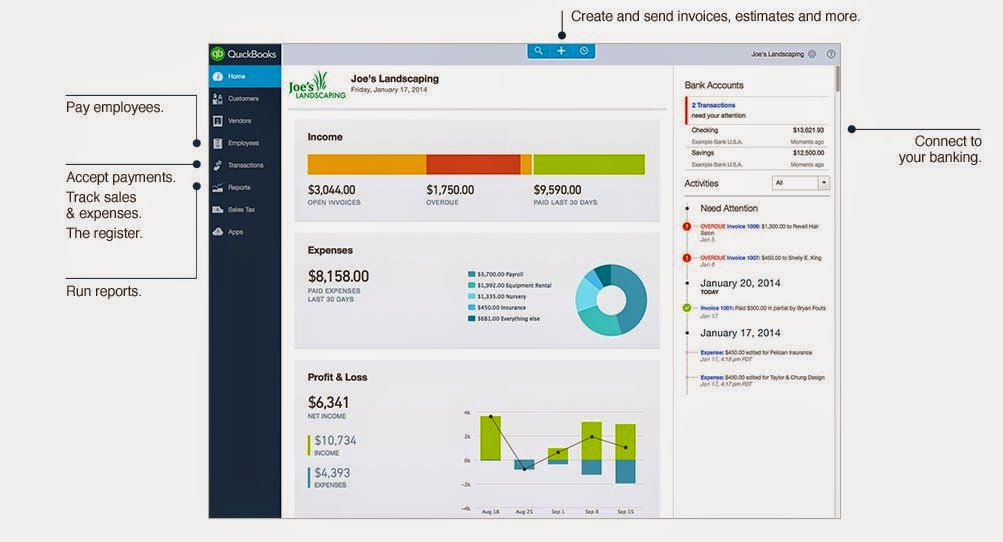
The new QuickBooks Online is here! Have you updated yet? All the features you love about QuickBooks Online is now even better! There is even a faster way to get paid! Now you can email invoices with a new and improved Pay Now button so now your customers can pay instantly online with credit card or bank payment! You can also see who and what needs to paid!  Updating to the new QuickBooks Online only takes a minute! So update today! Have any questions or concerns?  Call The QuickBooks Gal!

How to Back Up in QuickBooks

Image
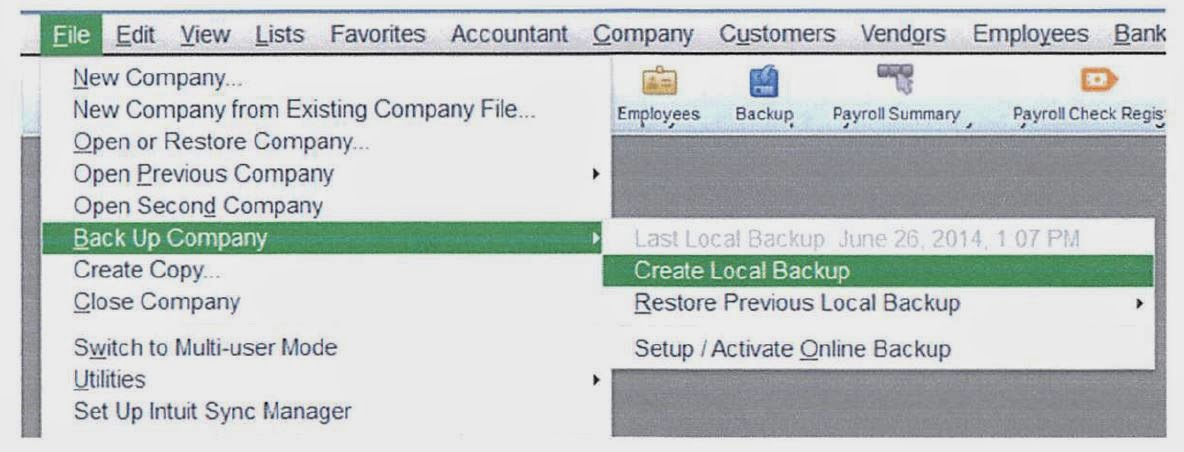
Backing up your work is very important! Especially if you are trying something new. Below are step by step directions on how to back up in QuickBooks Insert flash drive and confirm what the drive is (I am using Desktop in this example) Select File>Backup company>create copy>create local backup Follow these steps...screenshots below explain what to do next: Select Finish- process will take a while.. do not remove flash drive until you see a message that says your backup is complete. When you see this message, click OK before you eject the flash drive or the backup will not properly close. When finished, insert the flash drive and verify that you have the file on there. Make 2 backups! Have a QuickBooks Mess? Call the QuickBooks Gal!