Posts

Showing posts with the label #QuickBooks #Mac #Tips #tricks #Payroll #Bookkeeping

QuickBooks Online Shortcuts

Image
To use these shortcuts simply press Ctrl + alt(or option)+ one of the keys listed below Have a question or concern about QuickBooks? Call The QuickBooks Gal

QuickBooks Online: Entering Your Expenses

Image
So you just got QuickBooks Online and now it's time to start putting in expenses or maybe it has been a while that you entered an expense. Don't worry, The QuickBooks Gal is here to help QuickBooks Online keeps track of each check, debit and credit transactions and even cash purchases, this helps you get a better understanding where exactly your money is going.  Choose the bank account you will be working on Enter the date Select the name of the vendor Enter the total amount Select the correct business category  QuickBooks Online is one of the most popular QuickBooks yet! With access to your business anytime, anywhere what is not to love?  As always if you have any questions or concerns please feel free to contact The QuickBooks Gal! 

QuickBooks Online- Time to Switch?

Image
There is so much to love about QuickBooks Online! With QuickBooks Online, bookkeeping doesn't have to be chore, with QuickBooks Online all basic tasks are now easier than ever! With QuickBooks Online it does the work for you, that way you have more free time!  Reasons to Love QuickBooks Online: Save time inputting data and stay on top of all your books: QuickBooks Online has automatic data entry, that way you don't accidently double entry or forget one. Have accurate records in and outside of the office: With QuickBooks Online you are able to take pictures of receipts or statements and see them later in QuickBooks. You can have your team be able to have access to your QuickBooks if needed: Now you can have your Accountant and employees using QuickBooks Online simultaneously; no waiting for files to be emailed or waiting for the flash drive. There is also no need to have multiple back up files! QuickBooks Online is backed up with bank-level security  ...

Paying Multiple Bills At Once!

Image
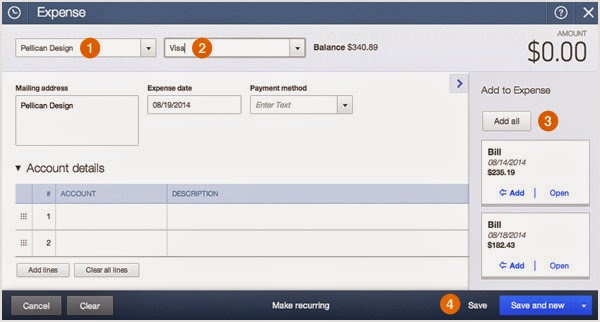
Sometimes you end up having multiple bills to pay for just a single vendor. This is the best way to pay them all at once through QuickBooks! Example: You have two bills that need to be payed for a vendor: Create (+) > Bill > August 14: $235.19 Create (+) > Bill > August 18: $182.43 To save you and the vendor time, you can make one payment that applies to both bills. Below are step by step directions on how to pay one vendor through QuickBooks! Click Create (+) > Expense 1) Enter the payee name/company. 2) Choose a payment account. Bills that are open for this vendor appear on the right. 3) Click Add all to add both bills. 4) Click Save. Now you have payed all your bills for that vendor! Got a QuickBooks Mess? Call the QuickBooks Gal!

QuickBooks Online How To: Set Up Sales Tax

Image
How to set up sales tax in QuickBooks Online Add a tax rate and agency Click  Add/edit tax rates and agencies  in the Related Tasks list to the right. Click  New  and select either a single tax rate or a combined rate. Enter a name for the rate, the agency you pay the tax to, and the percentage for the rate. Use a single rate if you pay just one rate to a single agency. Click  Save . The new rate appears in the  Sales Tax  Rate and Agencies List. You'll see the new rate in forms like invoices and sales receipts. You can edit a tax rate or tax name once you've added it. Add a combined rate with multiple agencies If you're required to track  sales tax  for more than one tax agency, consider setting up a combined tax rate. To add a combined tax rate: Click  Add/edit tax rates and agencies  in the Related Tasks list to the right. Click  New  and select  Combined tax rate . Enter a nam...

QuickBooks App Update!

Image
With QuickBooks apps you can work on your business on the go!  On the beach, a soccer game, or even getting a pedicure with the QuickBooks App you can work anywhere on a smart phone or tablet! What's New: IPhone and IPad The iPhone and iPad apps now include a better invoice emailing experience for you and your customers: From your invoice email, customers can click ‘ View Invoice Now ’ to view invoice details and save it. ‘ Pay Now ’ lets customers immediately pay you from their phone, tablet, or computer (payments enabled through QuickBooks Payments). Sending emails now just got easier!: Now you can set a custom, default message when you send emails and customize the originating email address. iPad App News In the menu you’ll see a new tab called Products and Services. Here you’ll be able to look through all of the products and services you offer and add new ones to the list.  The QuickBooks app on Android is new too. You’ll notice that n...

How To: Move a QuickBooks Online File to Desktop

Image
Both QuickBooks Online and Desktop need to be open during the whole process. Open the version of QuickBooks desktop into which you will convert your QuickBooks Online Edition company file. Do not open a company file; stop at the No Company Open window. Start the QuickBooks Online Edition export interview: Go to QuickBooks Online and log in to your company file. Select the  Company  tab, then under  More,  select  Export Your Data . The QuickBooks Online Export window opens. Select an option to export  Lists  or  Lists & Transactions , and then click  Next . Lists: Read the information in the Exporting Lists window. Click the  print the entire list of details  link, and read and retain the document. Click  Next . Read the information on your screen about how to export lists, and then click the  Export  button. In the Create New QuickBooks File window, select a location and enter a file nam...

How to Back Up in QuickBooks

Image
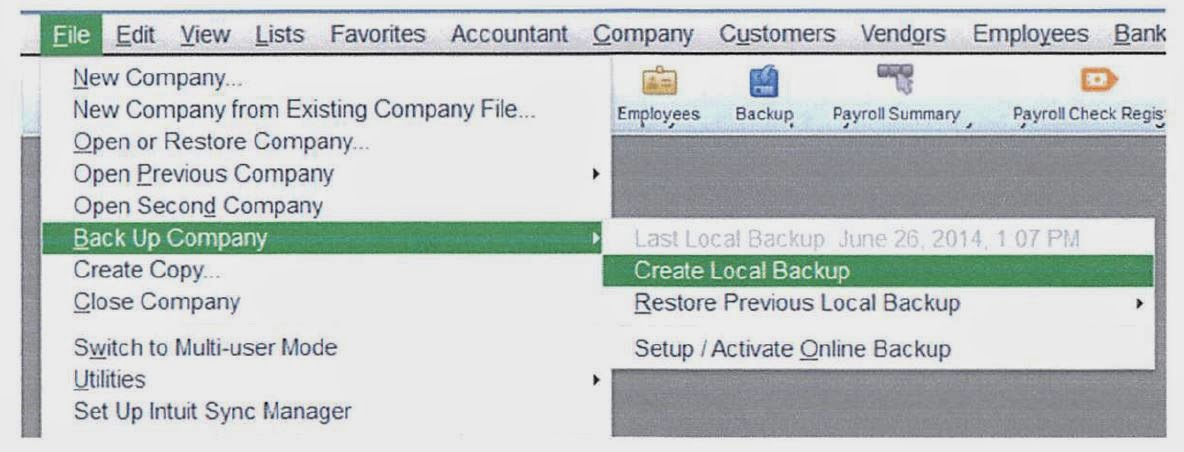
Backing up your work is very important! Especially if you are trying something new. Below are step by step directions on how to back up in QuickBooks Insert flash drive and confirm what the drive is (I am using Desktop in this example) Select File>Backup company>create copy>create local backup Follow these steps...screenshots below explain what to do next: Select Finish- process will take a while.. do not remove flash drive until you see a message that says your backup is complete. When you see this message, click OK before you eject the flash drive or the backup will not properly close. When finished, insert the flash drive and verify that you have the file on there. Make 2 backups! Have a QuickBooks Mess? Call the QuickBooks Gal!

Check Fraud

Image
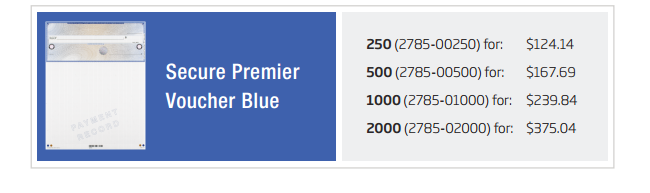
Check Fraud is more common than you think! It's actually more common than credit card  fraud, making up more than 4 in 5 fraud attempts. About 30% of small business fail each year due to fraud. Don't be part of that statistics and order Intuit’s Secure Checks! But why would you pay for Intuit checks when you can probably go to somewhere else and get the same thing for much less? Those other vendors might say “QuickBooks checks,” but they’re not. The only checks designed specifically for QuickBooks by the makers of QuickBooks are these. Other checks may not align properly for printing, and even if they do now, they may not with future versions of QuickBooks. Intuit’s checks are designed by FBI fraud trainer Frank Abagnale and have 27 overt and covert features designed to keep you safe!   Secure checks help prevent fraud and element it. If you would rather not deal with fraud at all, secure checks is the best way to go! Intuit Checks are made to kee...

Intuit QuickBooks Payroll Pricing Changes

Image
Payroll Service Annual Subscription Monthly Subscription Standard Payroll (effective 8/1/14) $509 per year N/A Enhanced Payroll, 4 or more employees $479 per year (effective 8/1/14) $47.90 per month (effective 9/9/14) Enhanced Payroll, Variable employee Fee* (effective 9/9/14) $390per year, plus $2 per employee per payroll $39 per month, plus $2 per employee per payroll * starting in 2013, the pricing for new QuickBooks Payroll customers changed to a base fee plus per-employee fee. Direct deposit for W-2 employees is included in this fee. QuickBooks Enhanced Payroll for Accountants, effective 9/9/14 Annual subscribers will receive notification prior to their renewal date and will be charged the new price at the time of their renewal. Payroll Service Annual Subscription Monthly Subscription Enhanced Payroll For Accountants $479 per year $47.90 per m...

Top Mistakes Made By QuickBooks Users

Image
Are you new to QuickBooks? Don't make the same mistakes as others. Here are a list on the top common mistakes QuickBooks users make!: Never use a sample file as your actual company file! The sample file is just to help you learn how to use QuickBooks, the sample file contains a limited set of services.  Don't enter invoices and then make a deposit without going through the Receive Payments step: If you are entering invoices in QuickBooks to record your sales, be sure to use the Receive Payments screen to apply the payment against the invoice. Don’t accidentally record your customer payments twice! Seems like a silly mistake, but it happens!  Don’t choose your bank account in the Expense Account field when writing a check Checking the Expense Account field causes the money to go out and immediately back into your checking account instead of reducing the checking balance Don’t rename or delete the critical accounts that QuickBooks automatically creat...

Got Mac?

Image
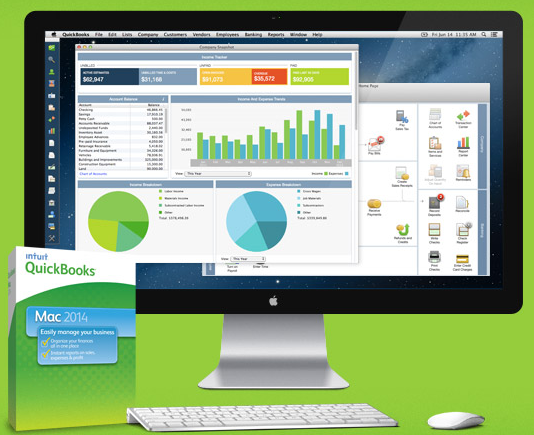
Then you need QuickBooks for Mac! Why? Get 1-click access to what you use most: The new Left Hand Toolbar lets you create shortcuts so you can move around QuickBooks even faster than before.  Find what you need, faster than before: You can use the enhanced, customization Centers to keep important customer, vendor, and transaction information at your fingertips. See who’s paid you (and who hasn't): The new Income Tracker shows all your income-producing transactions in one spot, including overdue invoices so you can remind customers to pay up. Keep track of sales rep performance: It’s easy to run reports that identify your top sales performers, whether they're an employee or a vendor. Do everyday financial tasks quickly!: Easily create invoices and sales receipts to keep track of who owes you money, what they bought, and when they paid you. You can log hours, bill clients, and add reimbursement expenses to your invoices. Keep track of important da...

How To: Convert a QuickBooks Online File to Desktop Version

Image
In order to convert a file from QuickBooks Online to a desktop version of QuickBooks Pro, QuickBooks Premier, or QuickBooks Enterprise Solutions you must be logged in to QuickBooks Online and QuickBooks Desktop and opened throughout the process. Open the version of QuickBooks desktop that you will be using to convert your QuickBooks Online Edition company file. Do not open a company file. Start the QuickBooks Online Edition export interview: Go to  QuickBooks Online  and log in to your company file. Select the  Company  tab, then under  More,  select  Export Your Data . Select an option to export  Lists  or  Lists & Transactions , and then click  Next . Lists: Read the information in the Exporting Lists window. Click the  print the entire list of details  link, and read and retain the document. Click  Next . Read the information on your screen about how to export lists, and then click the ...

QuickBooks Online: Keyboard Shortcuts

QuickBooks Online is already made to make your life easier, but now it is about to get even better! Below is the keyboard shortcuts for QuickBooks Online!  Got a QuickBooks Mess? Call the QuickBooks Gal! Note to Mac users:  You can try these shortcuts using the CMD key instead of Alt or CTRL when noted below. To open a second window in: Internet Explorer:   Press Ctrl + N (you will be logged in to existing company on both windows) Firefox:  Press Ctrl + N (you won't be logged in to the second window but will remain logged in to the first one.  The second window will allow you to log in to the existing company so that you may work using both screens.) Chrome:  Press Ctrl + N (if you go to QBO in that window you will be logged in to the existing company) To search for text in a window: To enter dates: Next day + (plus key) Previous day - (minus key) Today T First day of the Week W Last day of the week K First day of the Month M L...

FAQ On Installing QuickBooks:

Image
When it comes to installing QuickBooks it can be confusing, but don't worry The QuickBooks Gal is here to help! Here are a list of frequently asked questions about installing Quickbooks Products.  How do I update my data to a new version of QuickBooks?: Your data from an earlier version of QuickBooks will update automatically the first time you open the company file in a new version of QuickBooks What if I have multiple versions of QuickBooks? Can I merge all my files together? Unfortunately, QuickBooks files cannot be combined.  I just got a new computer, how can I QuickBooks or my data to a new computer? To move QuickBooks from one computer to another: 1) Install and register QuickBooks on the new computer: 2) Back up the company file on the old computer. 3) Restore the backup on the new computer. If you installed a newer version of QuickBooks on the new computer, the company file will be updated automatically the first time you open it. ...

The QuickBooks Gal:What We Offer

Image
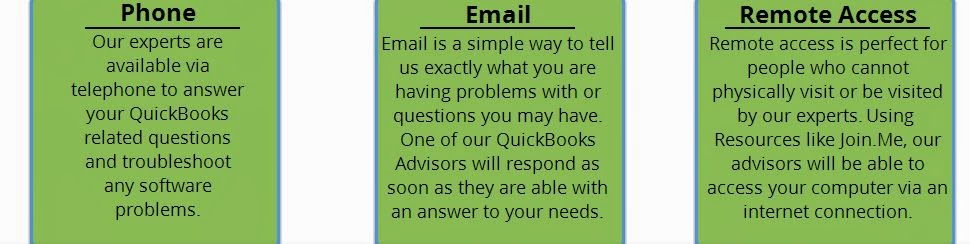
Our bookkeeping services are suitable for any industry: aimed towards businesses of small to medium sizes. We offer weekly, monthly, quarterly, or on demand bookkeeping based on your needs. We Offer: Set up Clean up Ongoing Bookkeeping Process daily sales and deposit reports Verify daily deposits and report variances Reconcile and verify credit card deposits Reconcile monthly bank statements ​And more! We offer remote support services with the latest technologies for screen sharing. Gaining access to your screen allows our experts to view your precise problems and help manage them in a timely manner. These remote support sessions allow our advisers to troubleshoot QuickBooks issues from any location and it is 100% guaranteed to be confidential. We have worked in a variety of industries and offer a range of services to meet your bookkeeping needs. We even include Payroll Service! The QuickBooksGal will take the hours and rates of your employees a...